
Irius Magic Studio · Desktop workspace

Create more.
Start with
free tools.

Edit clips, record voice-overs, and style and burn in subtitles—all in one desktop app. Start with free creative tools. Explore paid AI tools and Publishing when your project needs more.

Manual editing · Voice recording · Subtitle styling

One project, connected toolsPresentation
45 seconds · Music and real app results

Shape the story.

Bring video, voice and music together.

Inside Irius Magic Studio

Your creative tools, at a glance.

Explore the features in every tab, from editing your first clip to organizing complete workflows.


Video editing

Autocut

  • Arrange clips and refine the timeline manually.
  • Choose the output format and export your video.
  • Explore AI-assisted editing suggestions.
AI voice & music

Audio

  • Turn text into an AI-generated voice-over.
  • Generate music for your project.
  • Choose voice settings and music duration.
Recording & enhancement

Recordings

  • Record your microphone and monitor input levels.
  • Save your recording as WAV or MP3.
  • Enhance audio with local or cloud AI tools.
AI transcription

Transcript

  • Transcribe files with local Whisper AI.
  • Choose ElevenLabs for AI transcription.
  • Create text, SRT or karaoke ASS outputs.
AI text review

Subtitle correction

  • Correct SRT, ASS and TXT files with AI.
  • Provide names, terminology and instructions.
  • Save revised copies alongside the originals.
AI writing

Text

  • Turn source text into a voice-over script.
  • Generate a structured Markdown article.
  • Set the target script duration or article length.
Subtitle design & export

Burn subtitles

  • Use SRT or karaoke ASS subtitles.
  • Adjust subtitle design and add your logo.
  • Render subtitles directly into the video.
Paid publishing

Publishing

  • Connect supported platform accounts.
  • Prepare video queues, titles and descriptions manually.
  • Review publication progress and reports.
Connected workflows

Pipeline

  • Build and run workflows with free steps.
  • Save and reload reusable configurations.
  • Review AI-assisted setup before applying it.
Batch processing

Pipeline Queue

  • Queue multiple workflows using free tools.
  • Organize their processing order.
  • Track progress, pause or retry queued work.
Your settings & usage

User

  • Register, sign in and manage your session.
  • Choose the application language.
  • Choose AI models and review your plan and usage.
See the real app

Your workflow. Your queue.

Build a Pipeline for your project, then keep the next ones ready in Queue. Explore the real workspace with these sample projects.
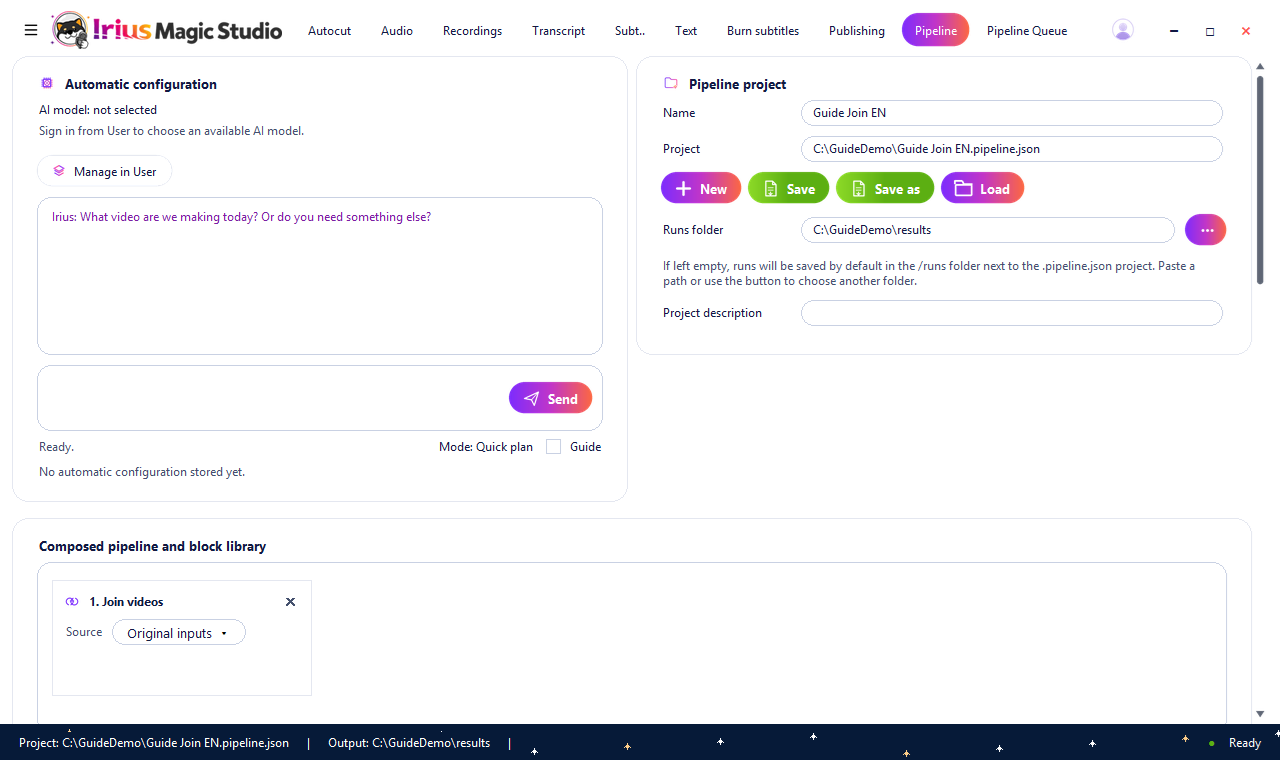
Pipeline with a saved sample project, a separate runs folder and a Join videos block set to Original inputs.
Pipeline

Build your workflow.

Combine the steps your project needs, review their settings and save your Pipeline to use again.

View larger
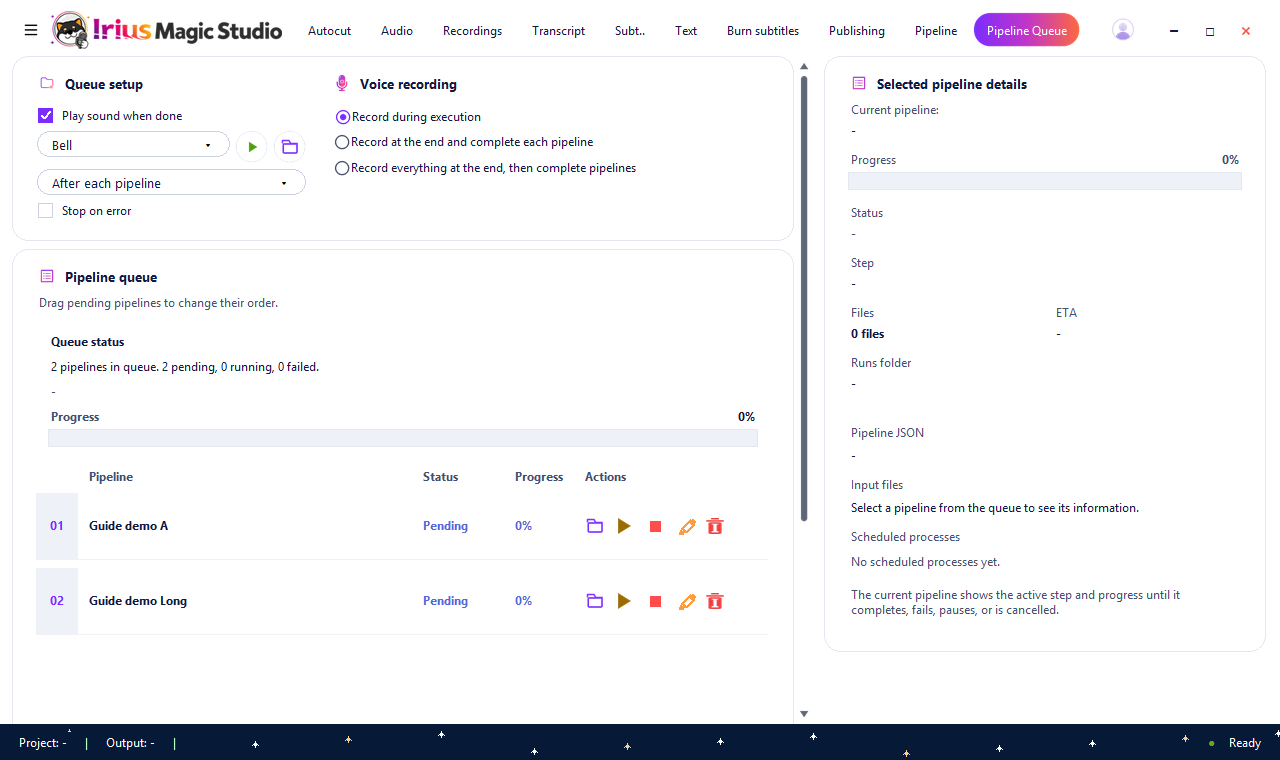
Pipeline Queue with two sample projects pending at zero percent and no project selected in the details panel.
Pipeline Queue

Keep your projects in order.

Arrange pending projects and see each Pipeline's status, progress, files and steps in one place.

View larger

Actual app screens with sample projects. The queue is ready to run; time estimates appear during processing when available. AI services and Publishing are paid features.

From your phone to your project

Record on your phone.
Create on your desktop.

Bring your mobile recordings into Irius Magic Studio. Transfer the audio file to your Windows PC, then add it to your project.

  1. 01 · On your phone

    Record.

    Capture your voice on your phone using your preferred recording app.

  2. 02 · Move the file

    Transfer.

    Move the saved audio file from your phone to your Windows computer.

  3. 03 · In Irius

    Create.

    Import the recording into Irius and use it as part of your project.

Audio formats include M4A, MP3 and WAV.

Create your way

Free tools.
More when you choose.

Start with free editing, recording and subtitle tools. Add paid AI services and Publishing when your project needs more.

Non-AI tools

Free features

Start creating with these free tools.

  • FREEManual video editing and export
  • FREEMicrophone recording and WAV or MP3 saving
  • FREESRT and ASS subtitle styling
  • FREEBurning subtitles into video
  • FREEBuilding, saving and reusing Pipelines with free steps
  • FREEQueueing, pausing and retrying workflows with free steps
  • FREEAccount settings, language and usage overview
AI & Publishing

Unlimited access to AI tools and Publishing. A small price for more creative possibilities.

  • Publishing and connected-account management
  • AI-assisted editing suggestions
  • AI-generated voice-overs
  • AI-generated music
  • AI-assisted subtitle correction
  • Voice-over scripts and articles generated with AI
  • AI transcription
  • AI voice cleanup

Simple pricing: creative tools stay free. Unlimited access to paid features costs 50 CZK per month or 500 CZK per year, billed on the schedule you choose. The annual plan saves 100 CZK compared with 12 monthly payments.

Learn by making

Explore the guides.

Follow the Pipeline guides or see the drafts for other tools.

Browse all guides →
Bring your next project

Start with a clip.
See where it takes you.

Your video, voice and subtitles in one creative workspace.

Download for Windows

Windows 64-bit (x64)
Requires 64-bit Windows and an x64-compatible processor. This build does not run on 32-bit Windows.

Download currently unavailable.

See Irius Magic Studio in action.

A 45-second presentation with music, real app footage and creative results: video, voice, subtitles, text, Pipeline and Queue.

Inside Irius Magic Studio